Printing GC Test Paperwork
Each chiller received for refurbishment will have a work order number assigned to it by logistics. This will be recorded on a colored tag along with the part number and the serial number. This tag will stay with the chiller throughout the entire repair process. Please take care to keep it in good conditions because it will get shipped back out to a customer.
Repair Types
-
Core Repair
The core repair is represented by a yellow tag. This is a unit that CryoSRV owns and will sell it on an exchange basis which will produce another defective core repair to refurbish. Core repairs are sometimes sold on an "outright sale" basis which will not procude a returned defective core. -
Customer Repair
The customer repair is represented by a blue tag. This is a unit that is owned by a customer. These type of repairs require regular communication with the sales department with regard to the status of the repair process. -
Warranty Repair
The warranty repair si represented by a red tag. This indicates that the unit failed under warranty and that a full analysis must be performed in order to identify the cause of failure. -
Purchase Analysis
The purchase analysis is also represented by a red tag. This indicates that we are evaluating the purchase of a unit and need to perform a full evaluation on the unit in order to determine if it is a viable unit before accepting delivery.
Accessing Airtable
From your computers browser go to the Airtable website and log in. This will have been covered in your onboarding.
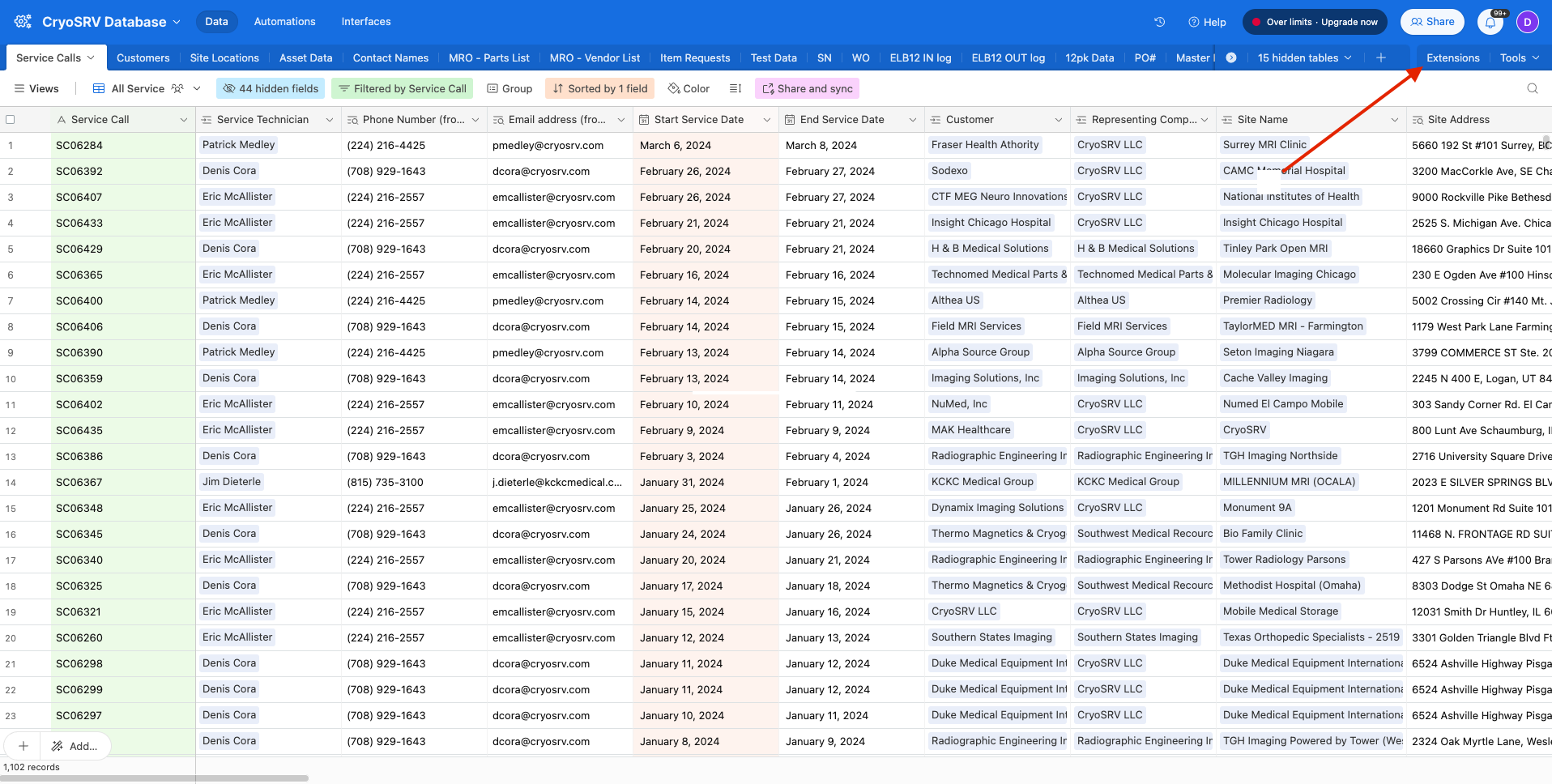
Once logged in, go to the to right corner to the Airtable Extensions and expand the field.
Note
The Airtable user interface is extremely dense and takes some getting used to navigating. As tempting as it might be to click the "Tools" tab, there is nothing in there of use at this time.
Expand the screen and select the GCRC extension option in the dropdown on the top left of the screen.
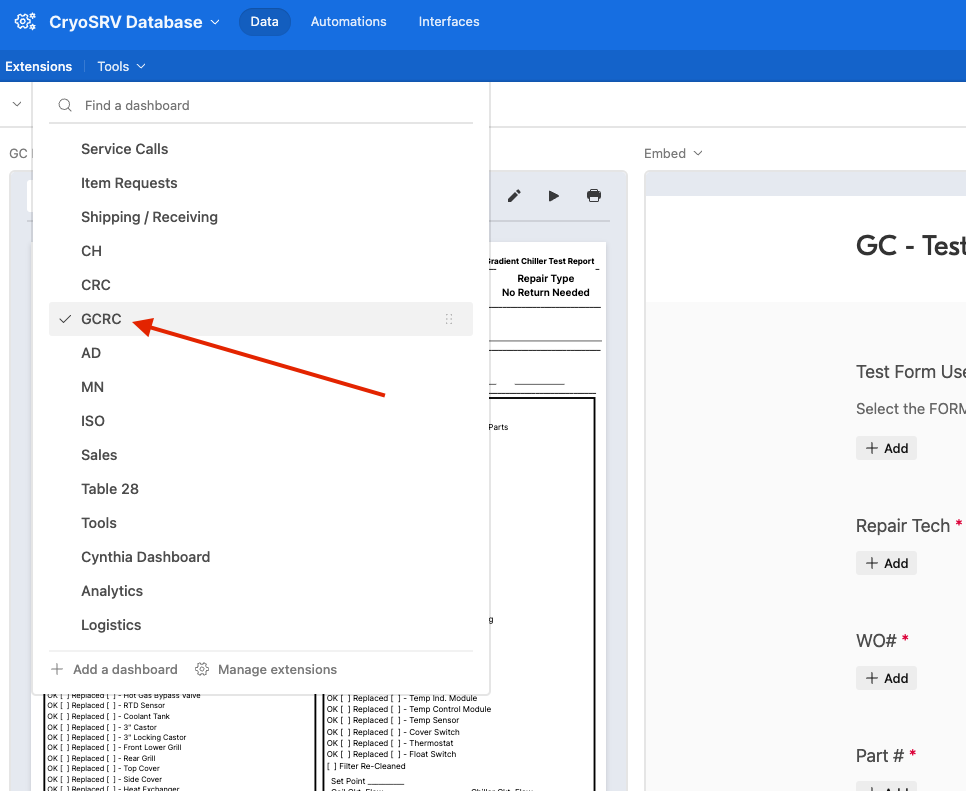
Expand the GC Refurb Paperwork screen and in the "Go to record" spyglass, enter the full work order number in the search field.

Validating Test Paperwork Information
Warning
Select the work order record and verify that the document on-screen information matches the work order tag on the chiller. Sometimes logistics will receive a different part number than is on the chiller.

If all the information matches then print out the document or if the information doesnt match, please contact logistics to investigate and update the information.
Success
Please move forward to the appropriate refurbishment work instructions.