MRO - Add Item Form
MRO - Add Item
Navigate to the mro - parts list table and search the views for
mro - add item
Select the form view when it populates and in the view option select the open form button.
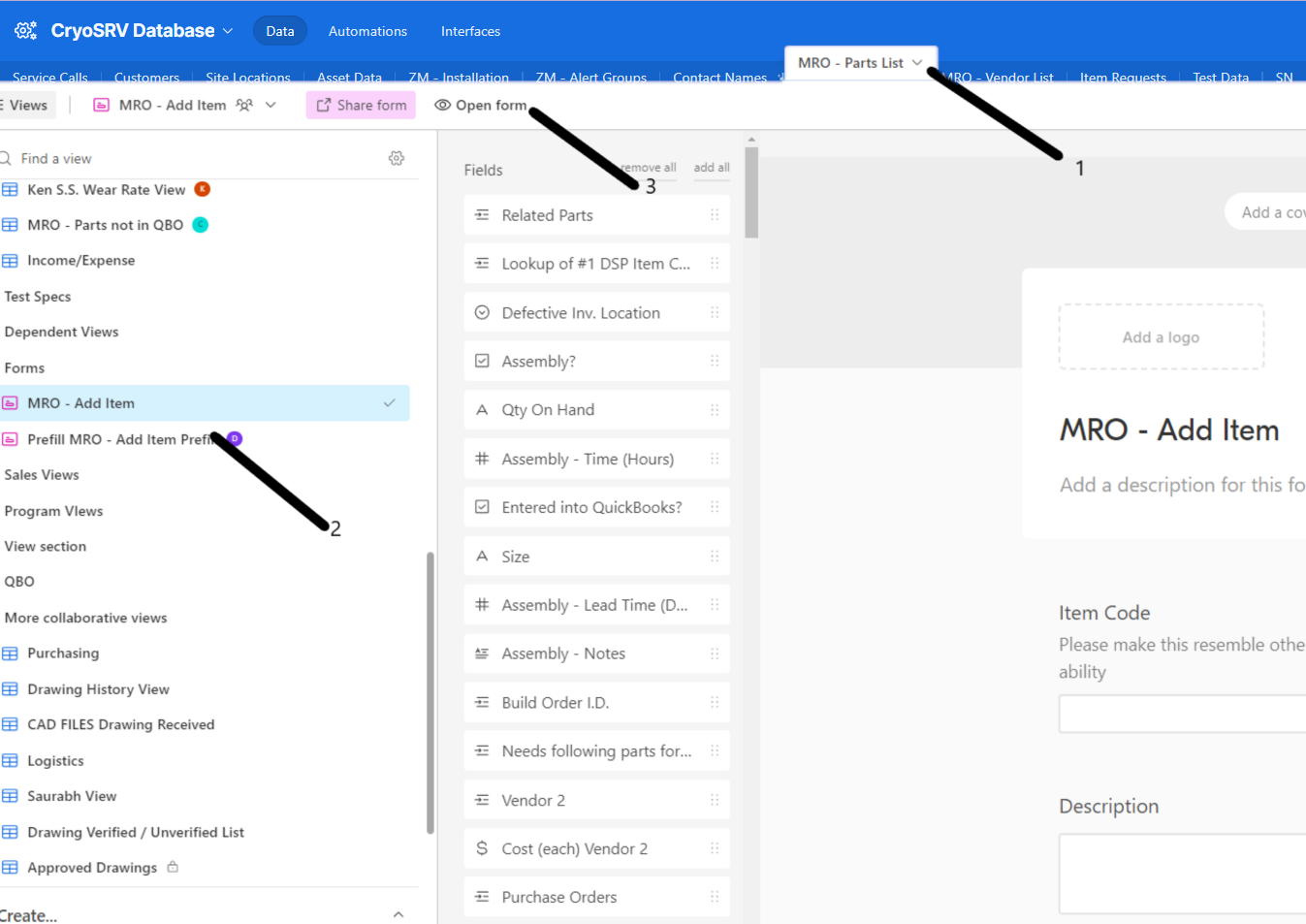
Prove that you have administrators permissions and enter the password to gain access.

Once inside the form there is a list of details that you need to enter before it can be submitted.
Item Code Method
There are two item code methods for adding an item code.
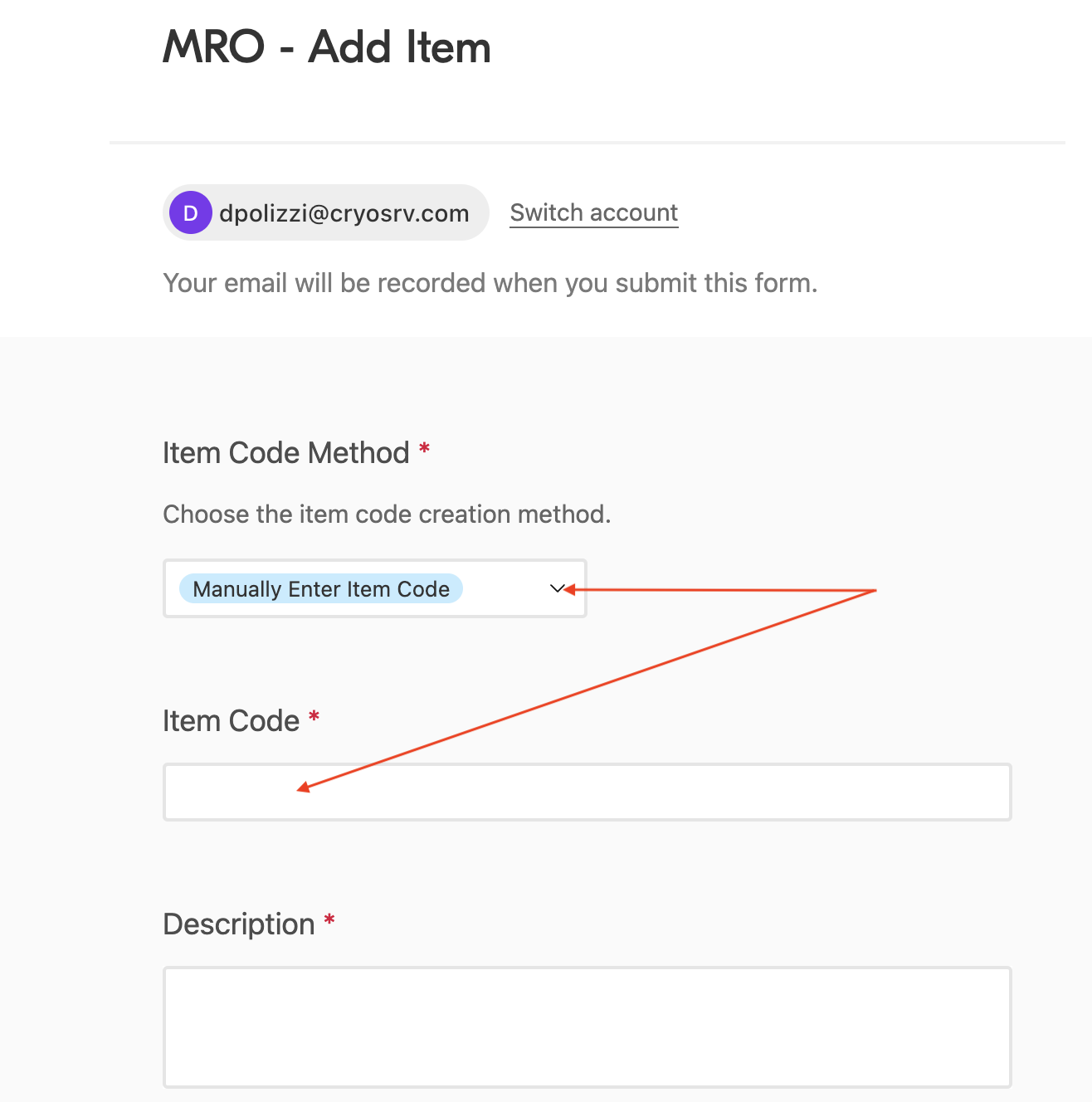
manually enter item code
The manually enter item code is the option that should be selected for item codes that are proprietary or specific to a vendor. These item are cold heads, compressors, chillers, or GE parts that are already assigned part numbers from the manufacturer and are generally well known in the industry.
Once selected, the item code field will become visible. This is a basic text field which will accept any character entered. Enter the manually entered item code here.
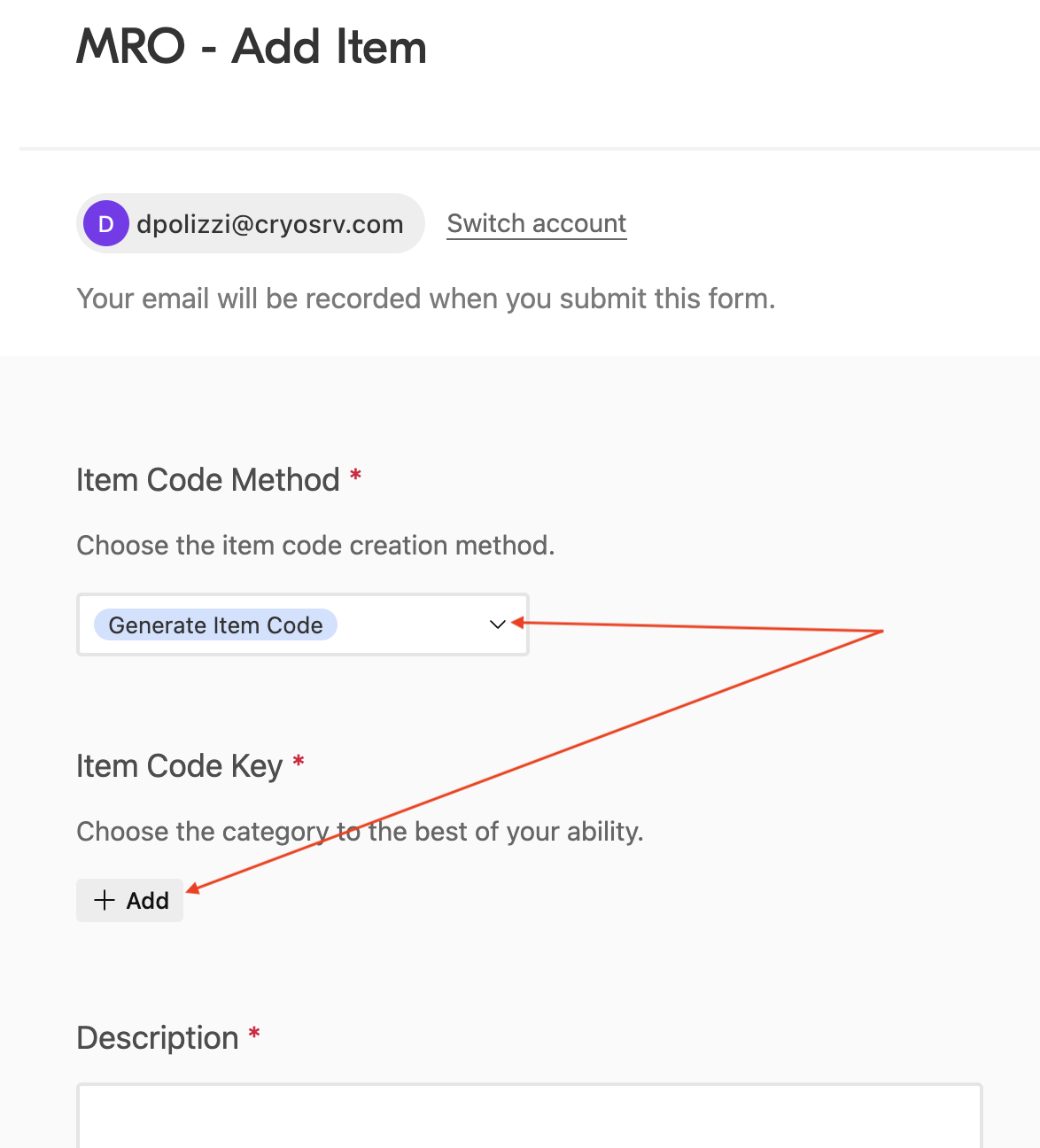
Generate Item Code
The generate item code is the option that should be selected when entering item codes that are for items that are not proprietary or specific to a vendor. These are the vast majority of items that populate the mro - parts list. They are fasteners, pipe fittings, electrical components, office supplies, and other items that need a unique code but have no manufactures part number or trade number.
After selecting the generate item code method, the next required field will be an item code key selection. You will need to select the best option available which will assign the item a leading number. This gives similar items a common leading number such as 10, 20, 30, etc.

Description
The description is going to host the vast majority of the search terms needed to find this item code. It should be a complete description that contains one or more unique characteristics of the item.
Warning
Descriptions cannot contain any commas. Commas will disrupt ZAP's that issue purchase orders.
Min Qty
The minimum quantity describes the quantity that is reached that triggers an item request. The user who must go into a sealed minimum quantity bag must empty the bag into the larger bag and discard the empty minimum quantity bag. The user must then submit a request for another lot of the items. This quantity entered must be considerate of lead times as well as use.
It is likely that there will be a minimum quantity of 0. This indicates that we do not want to stock the item but would like to make sure that there is repeatability in ordering the same item from the same vendor at a specific price.
Inv. Location
The inventory location is going to be one of two specific locations.
Needs Location
Since logistics will need to allocate space for an item that will be stocked, the needs location inventory location signals it needs a bin.
Xfer Shelf
The transfer shelf is the location used for when items will not be granted a bin location in inventory. The transfer shelf is where the requestor of an item collects these items once the item requests are received in the system.
Inventory Type (Counts)
The inventory type calls out the precursor to adding to the bin location. There are three possibilities.
Repair Depot
The repair depot inventory type is designated for items that need to be either repaired, pass a performance test, or both. Items that need to go to the repair depot prior to going into inventory are cold heads, compressors, etc.
QC Bench
The qc bench inventory type is designated for items that need to meet a quality standard or need to be verified in some other way prior to going into stock or to the xfer shelf. Items that need to be checked for accuracy or maybe have tolerances that must be quality controlled require this designation.
Straight to Stock
Straight to stock is for items that are consistent enough or do not pose any risk to the failure of repaired parts. These include, fasteners, o-rings, pins, scotch-brite, metal tape, etc.
R&D Drawing Status
If the inventory type QC bench was selected then the R&D drawing status must be drawing needed, sent for drawing, or drawing verified. This also means that if anything but no drawing needed is selected then the inventory type must be QC bench.
Note
For the product development need drawing must be selected.
Prototype Verified
Note
When bringing parts into the mro - parts list using the product development work instructions a prototype must be developed.
The prototype verification is critical for establishing traceability. A prototype must be tested prior to production manufacturing. There are four options to select.
No Verification Needed
The vast majority of items that come into the mro - parts list will not need to be drawn and developed. A simple rule of thumb is that if we aren't manufacturing the part then no verification needed is the acceptable selection.
Needs Verification
During the product development work instructions all items must be brought in with needs verification. Needs verification must be selected in this case.
Needs Revision
(Ken, do we eliminate this as an option in the form?)
Verified
(Ken, do we eliminate this as an option in the form?)
Part Functionality
Any item being brought into the mro - parts list must serve a purpose and be verified to do so. Many of these functionality tests are communicated verbally as pass or fail. There are three options to choose from.
Needs Verification
Items may need to be tested for effectiveness and needs verification should be selected in these cases.
Note
Items coming in via the product development work instructions are traceable and must be tested to stablish its functionality.
Not Functional
(Ken, do we eliminate this as an option in the form?)
Inactive item
(Ken, do we eliminate this as an option in the form?)
Most items that enter
Approved CAD Files / Drawings
This field is an attachment field that allows any images or documents to be attached.
Part Type Prefix
In the event that items being added are work order controlled then the part type prefix must be used to help produce a unique work order number. The work order controlled items are items that are sold on exchange and repaired. For reference see part type prefix table
If the item will not be work order controlled the prefix will be MS.
Vendor
Select the vendor from the options available. If this is a new vendor and it doesn't show up when searched you will have to add it to the system using the add vendor form. For that work instructions see add vendor.
Vendor Part
The vendor part number is something that is issued by the vendor the item is being purchased from. This number will vary depending on where it is purchased from.
Example
The vendor part number will be different for an identical item if it is sold on two separate websites. e.g. pan headed screws from Zoro.com versus McMaster.com. This isn't always available and a trade number or leaving blank is acceptable at the moment.
Link
The vast majority of orders are placed online. Often there are web stores where the specific item has a link. Simply copy and paste the web url from the browser into this field when looking at the items page.
Note
Be careful not add the item link from the shopping cart. They do not work.
Manufacturers Part
The manufacturers part number is the number the the manufacturer of an item assigns. This is most important with work order controlled items or cross referenceable item numbers.
Example
For this are the Sumitomo part number assigned to an RDK-408A2. GE will use 2224867-2 for this number which is the vendor part number.
Cost
The cost is the price CryoSRV pays for 1 each. For quantities greater than one the price must be divided by the quantity and that dollar amount must be used.
Example
A $20 pack of screws with 100 screws would be 20 ÷ 100 = 5. The price is 5¢.
Picture
For the picture attachment, you may upload one or more images of the item for ease of identification. This is probably more important for assemblies.
Qty in EACH
Quantity in length is broken up based on the item.
Length
A length of something like rod stock or things that come on rolls, spools, or skeins and are ordered by length. CryoSRV defines length in inches.
Example
A length of cable needs to be ordered and 25 feet are available for purchase. Because there are 12 inches in a foot you would multiply the number of inches by the number of feet to get the quantity. 12 • 25 = 300. The quantity is 300 for a 25 foot length from the vendor. If the price for this length is $25 then the cost is $25 ÷ 300 = $0.0834 ea.
Weight
Some items are sold by weight due to the quantities being to tedious and numerous to track. For items that are sold by weight. CryoSRV defines weight in grams.
Example
Lead spheres are sold by the pound and a lot of 10lbs is available for purchase. Because there is 453.592 grams per pound you would multiply the number of pounds in the lot by the grams in a pound to get the quantity. 10 • 453.592 = 4,525.92. The quantity is 4,525.92 for a 10lb lot from the vendor. If the price for the lot is $250 then the cost is $250 ÷ 4,525.92 = $0.0552 ea.
Volume
A volume is typically liquid, grease, etc. CryoSRV defines volume in milliliters.
Example
Isopropyl alcohol is sold by the 55gal drum and is available for purchase. Because there is 3,785.41 milliliters in a gallon you would multiply the number of gallons in the drum by the milliliters in a gallon to get the quantity. 55 • 3,785.41 = 208,197.55. The quantity is 208,197.55 for a 55gal drum from the vendor. If the price for the drum is $1900 then the cost is $1900 ÷ 208,197.55 = $0.00091 ea.
QBO Income Account
The Quickbooks income account must reflect the account to be credited when the item is sold to a customer. If this isn't clear you must consult with accounting to identify the best account.
QBO Expense Account
The vast majority of item is the mro - parts list are items that we purchase from other vendors. The QBO Expense Account must reflect the account to be debited. If this isn't clear you must consult with accounting.
Notes
The notes field is used for additional search terms or information regarding the item. This field may be left blank.
After all the fields are completed it is wise to review prior to submitting. Much of the information cannot be edited once it has been written.
Success
The system will have all the information that you have entered. It is now possible to place item requests and assign build order ID's.