Creating User Groups
User groups are groups of contacts that will receive email and text message alerts. Organizations can have one or more user groups. All of the user group functions are handled within the alert engine server.
Alert engine server is the specific server where alerts are managed and data is organized. This will be identified by (custom url).zeromonitor-cryosrv.com.
Login Screen
The default admin server is found at default.zeromonitor-cryosrv.com:8080.
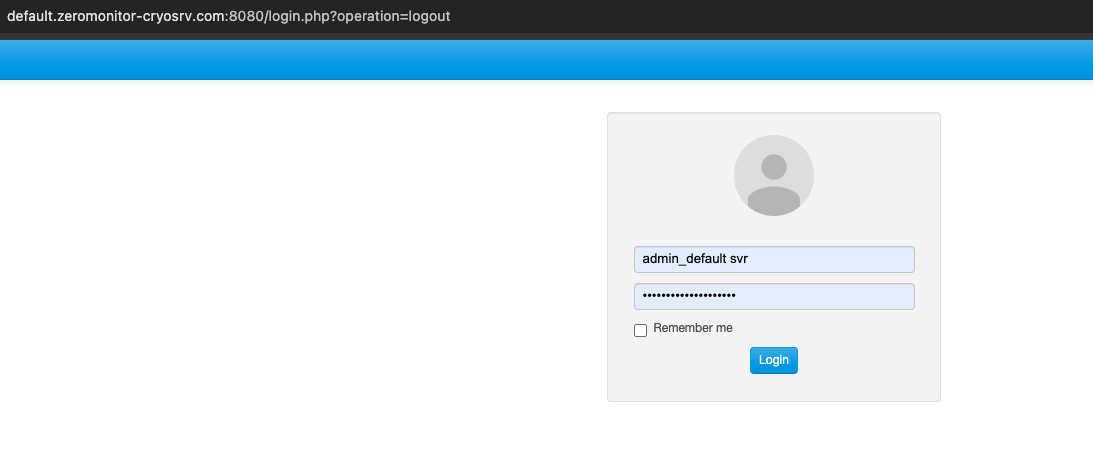
The login credential will be saved in the Keeper Password manager. With access to that shared record you can gain admin access.
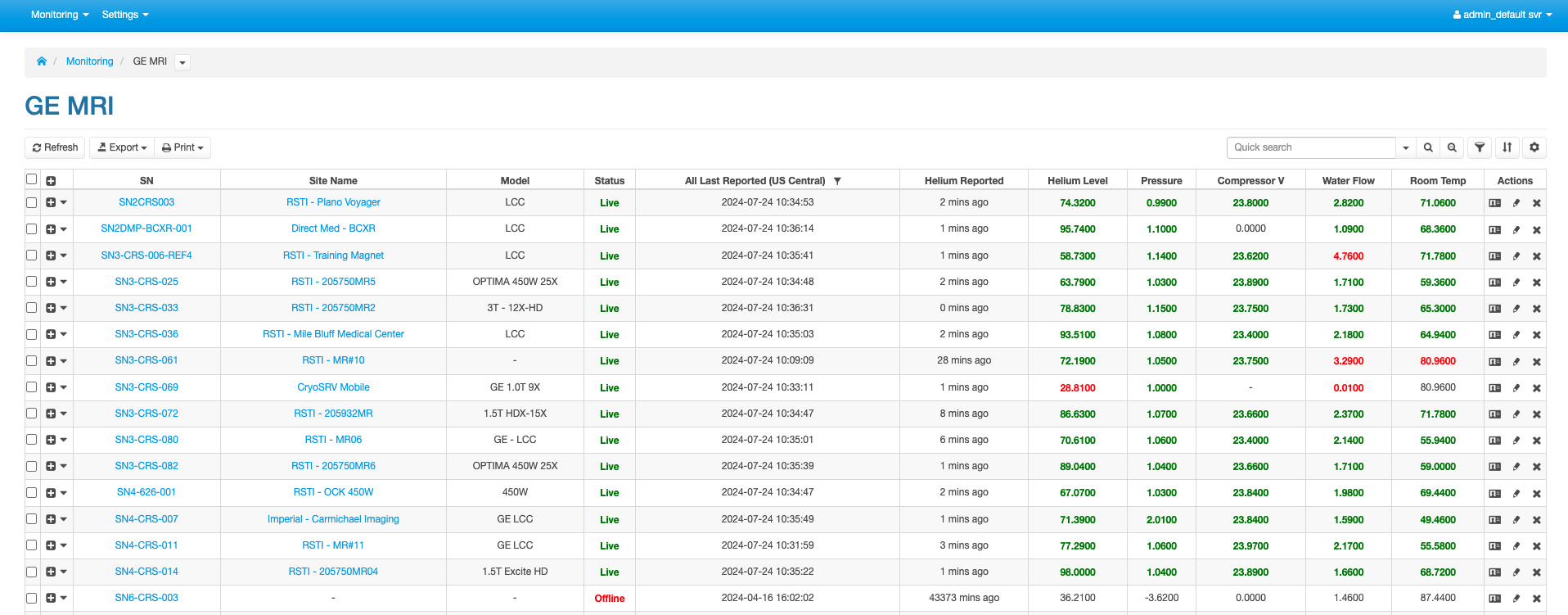
User Groups Page
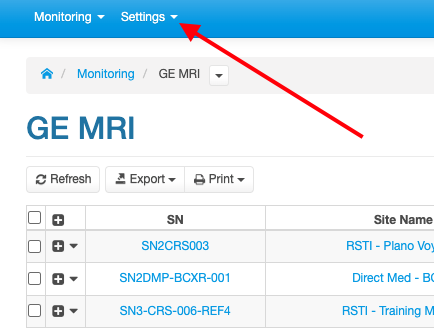
Travel to the user groups page by first going to the settings tab in the top left corner of the landing page.
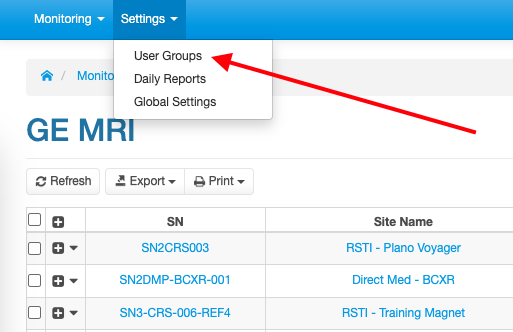
Then select the User Group option from the dropdown.
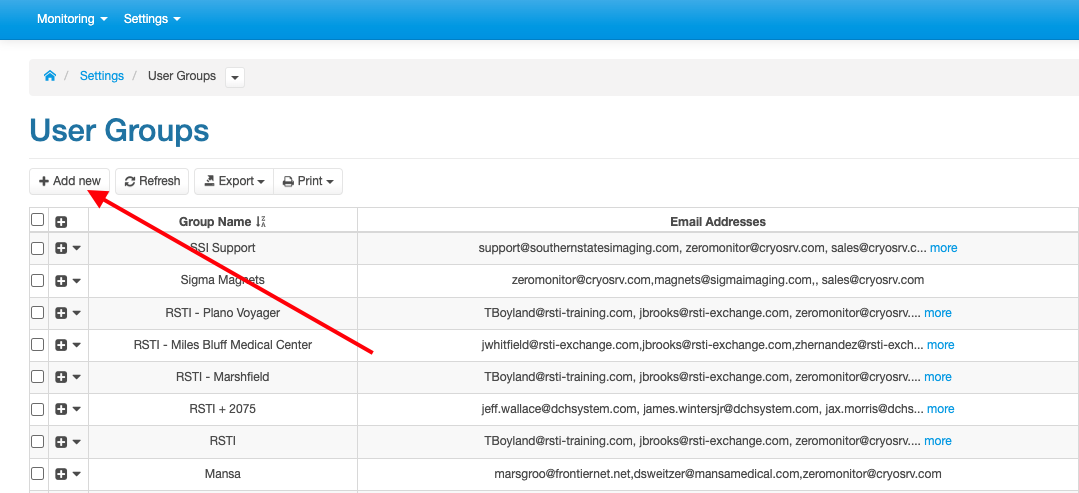
In the User Group page select the Add new button.
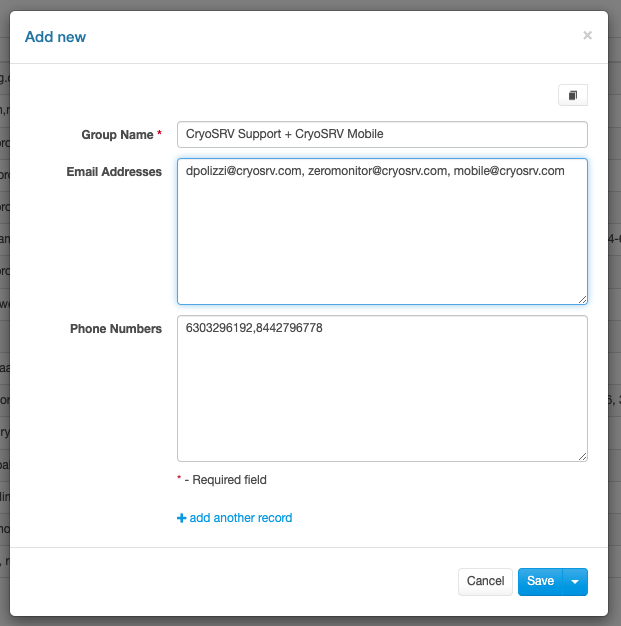
Add New User Group Prompt
Group Name
General User Group
The group name should be short and reference the customer if it is a general user group that will be used for multiple sites. Each customer will have at least one of these to configure the Daily Reports.

Site Specific Alert Group
There are customers that will require custom alert groups for a specific site or for a group of sites. The group names are configured to identify the customer and site/group-of-sites.
Email Addresses
The email addresses must be entered with commas separating each address.
Phone Numbers
The phone numbers must be added with no dashes "-" and they must be comma separated as shown above.
Adding the User Group to Airtable
To add the user group to the database follow the instructions located in the New User Group
Once the New User Group Form is completed in Airtable the work instructions are complete.
Success